
Automate Scheduling, Confirmations, and Reminders
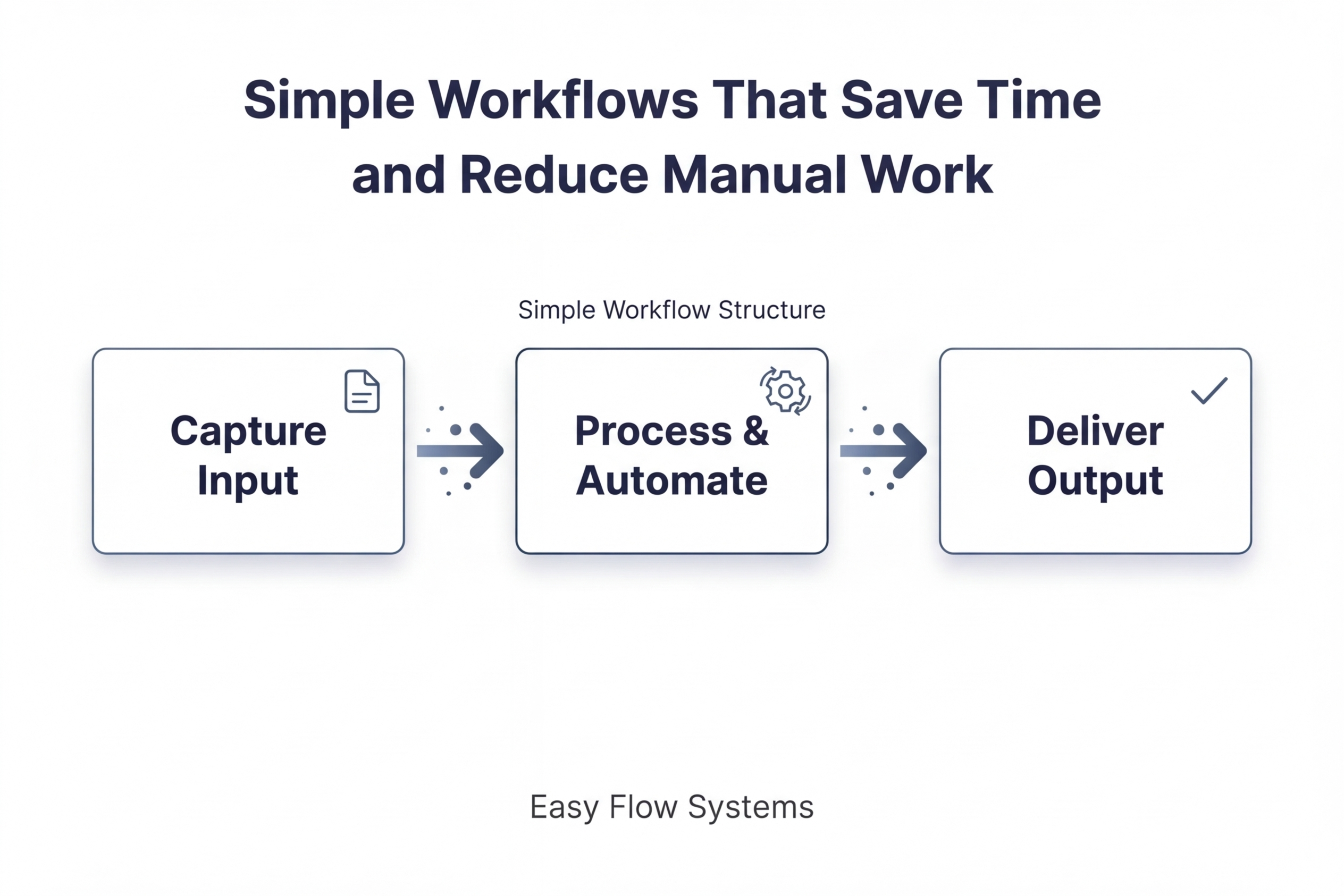
Simplify scheduling with structured booking, confirmations, and reminders so appointments are easier to manage and less likely to be missed.
Best for: small businesses, service providers, and teams managing appointments or consultations
Built Using: GoHighLevel | ChatGPT
The Problem
Most scheduling systems break down after the booking happens.
That leads to:
missed opportunities
People book, but forget or never confirm.
manual follow-up
Someone has to send reminders by hand.
inconsistent communication
Some people get updates, others get none.
unnecessary back-and-forth
Time gets wasted confirming details that should already be automated.
Even when booking is easy, appointments are often lost because confirmations and reminders are handled inconsistently instead of through a structured workflow.
The Workflow
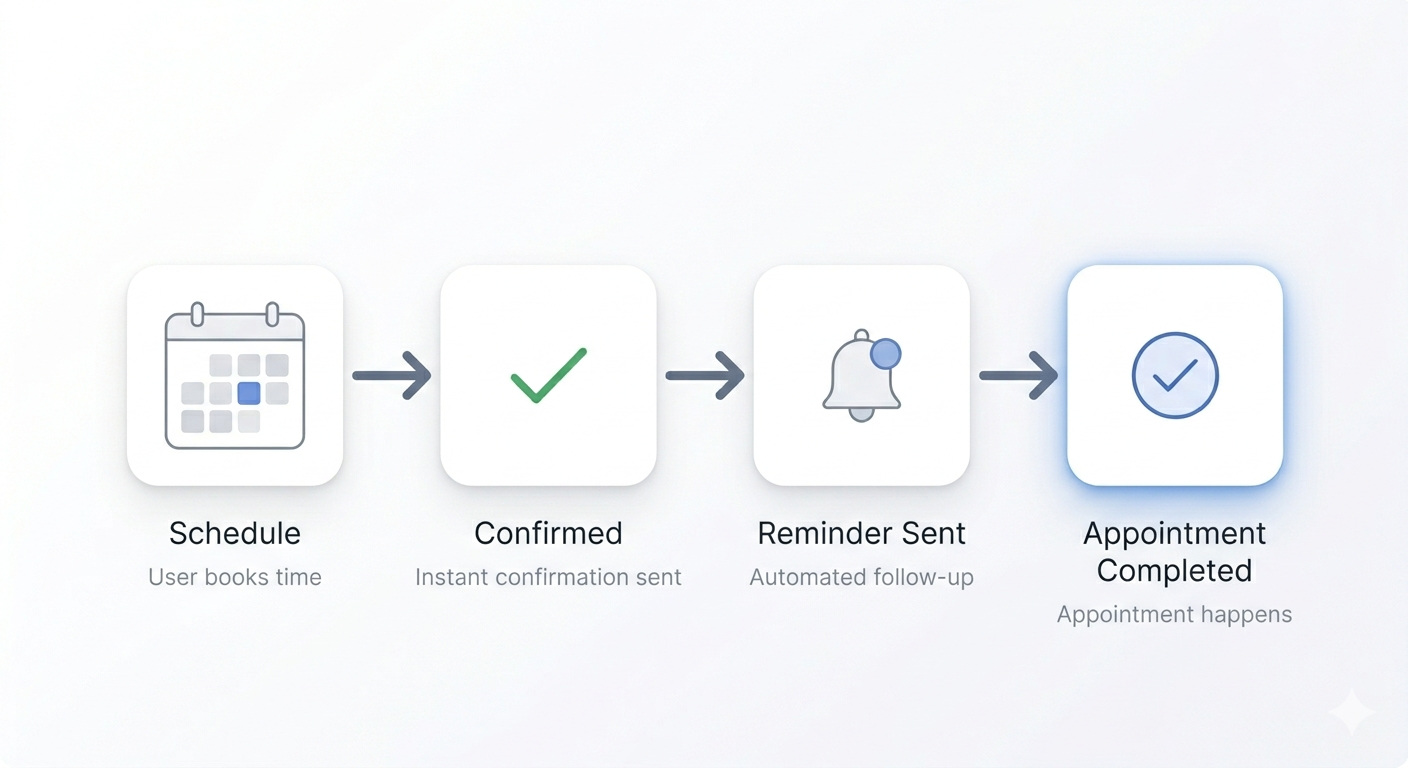
This workflow turns appointment booking into a structured system that confirms, reminds, and keeps the next step clear.
Step 1 — Schedule
Booking request
Calendar selection
Step 2 — Confirm
Confirmation message
Appointment details
Step 3 — Remind
Reminder sequence
Next step
The Guide
How to Actually Use This Workflow
This guide shows how to automate scheduling, confirmations, and reminders using GoHighLevel so booking is structured, communication stays consistent, and fewer appointments are missed.
Tool used in this workflow: GoHighLevel (used here for calendar booking, automation templates, workflow automation, confirmations, and reminders)
Other tools that can also support parts of this workflow include Calendly, Google Calendar, Outlook Calendar, Zapier, and Make.
Important: Think of AI as a personal assistant, not an executive. The human provides the direction, judgment, and standards. AI helps execute on that direction faster.
Simple rule: you decide how the appointment should be booked, what gets sent after booking, and how often reminders should go out. AI helps draft the messages and speed up the setup.
Start Here
If you only follow one path, follow this one:
- Create one booking calendar in GoHighLevel.
- Connect it to your real availability.
- Set an appointment-booked trigger.
- Send an immediate confirmation.
- Send one or two reminders before the appointment.
- Review the workflow before using it live.
That’s the full system in its simplest form.
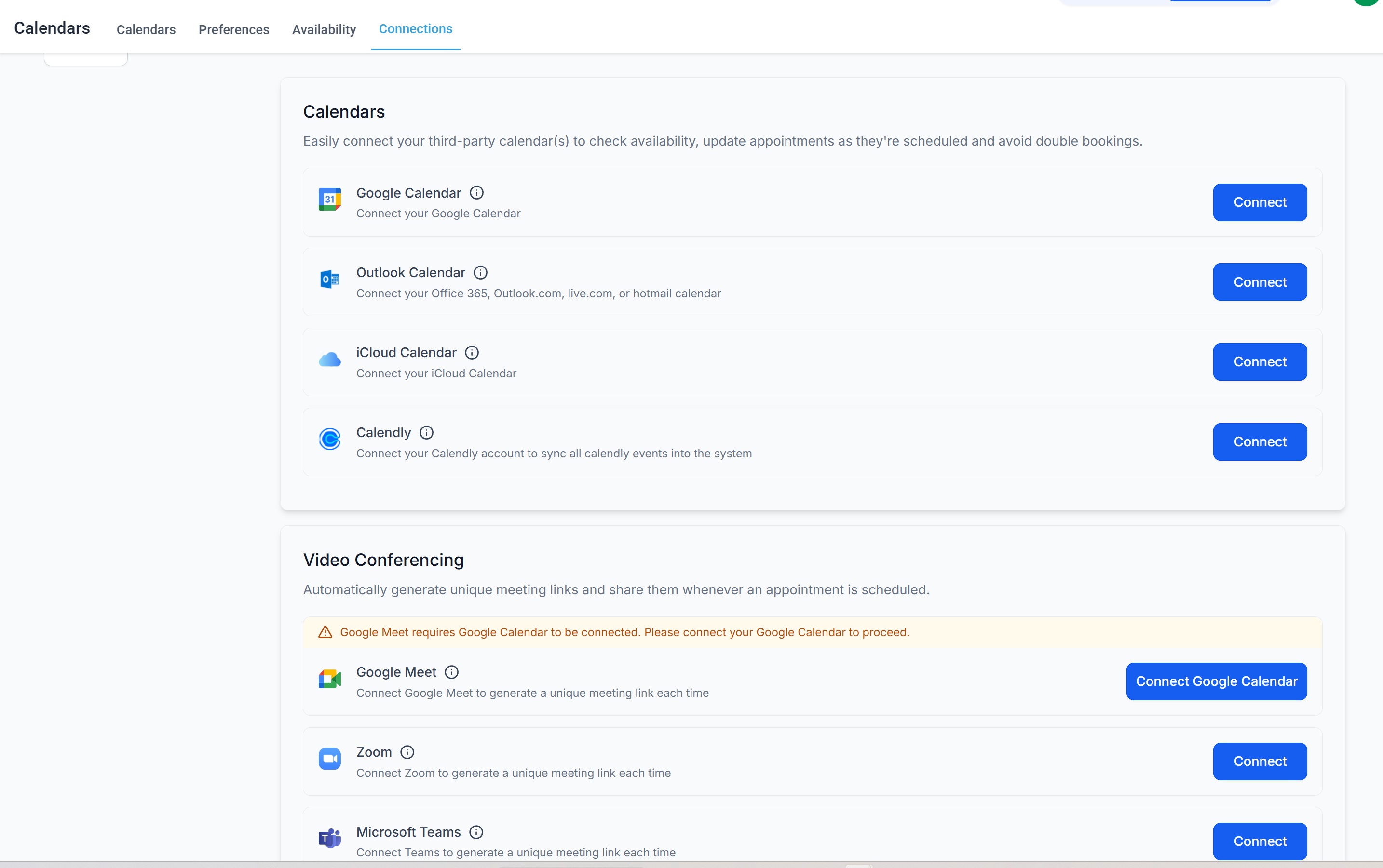
Step 1 — Connect the Calendar System
Primary tool: GoHighLevel Calendar
Other options: Google Calendar, Outlook Calendar, Calendly
Start by connecting your scheduling workflow to the calendar system your business actually uses. This is what makes booked appointments reliable instead of manual.
Simple step-by-step:
- Go to Calendars inside GoHighLevel.
- Create a booking calendar for the appointment type.
- Set the duration, availability, and booking rules.
- Connect that calendar to your real availability.
- Confirm the appointment syncs correctly with your calendar system.
Example
Use case: consultation booking for a service business
Goal: let people book directly without manual back-and-forth, while keeping appointment availability accurate.
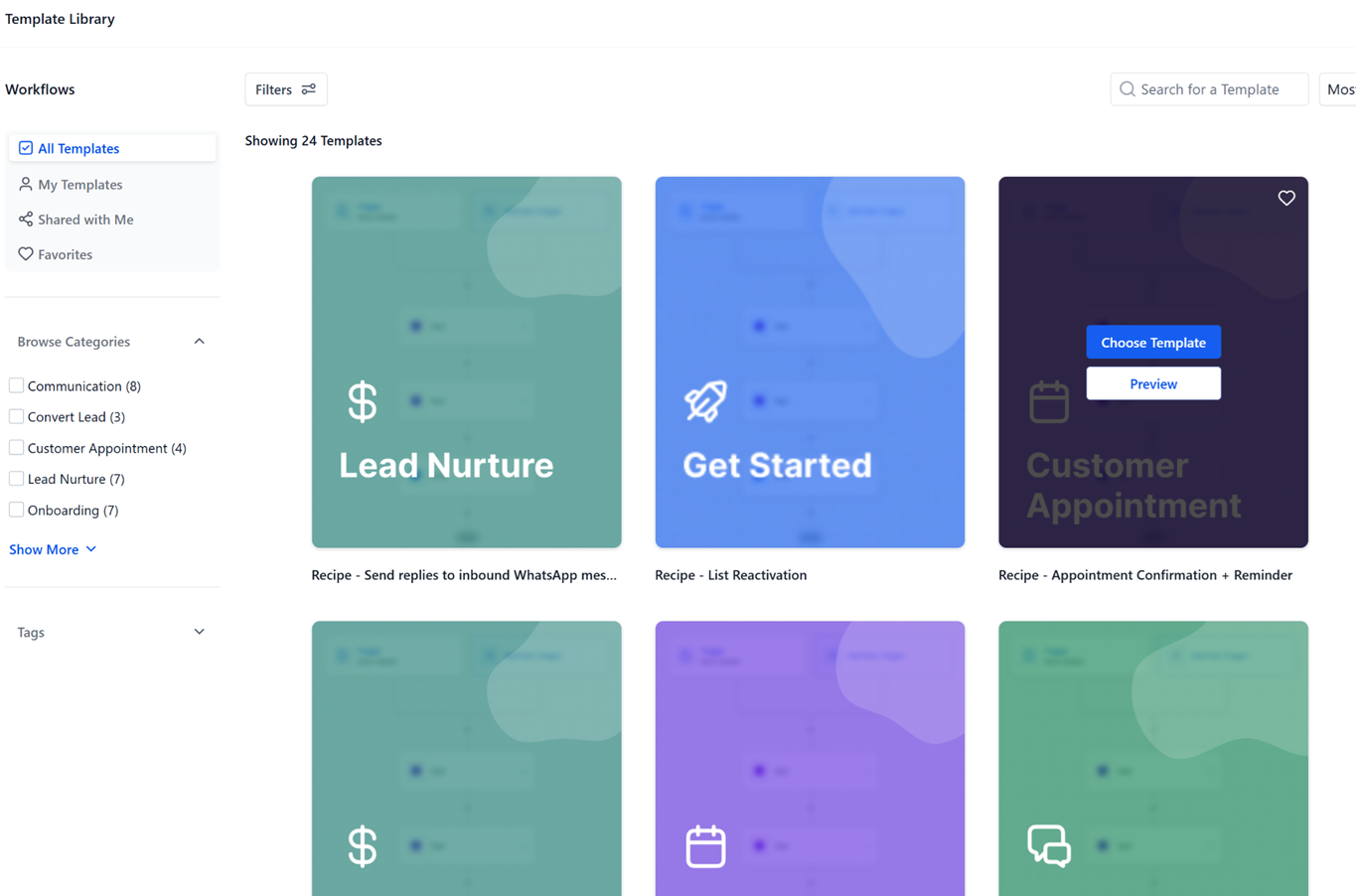
Step 2 — Start with an Automation Template or Build the Trigger Manually
Tool: GoHighLevel Automation Templates or Workflows
Once booking is set up, decide whether to start from a template or build from scratch. Templates are useful because they speed up the structure, but you should still review every step before using them live.
Simple step-by-step:
- Go to Automation → Workflows.
- Review available templates for appointment booking, confirmation, or reminder flows.
- Choose a starting point if it matches your use case.
- If not, create a workflow manually using Appointment Booked as the trigger.
- Keep the workflow simple: confirmation first, reminders second.
What you should have now
A clear appointment trigger and a workflow structure ready to handle confirmations and reminders.
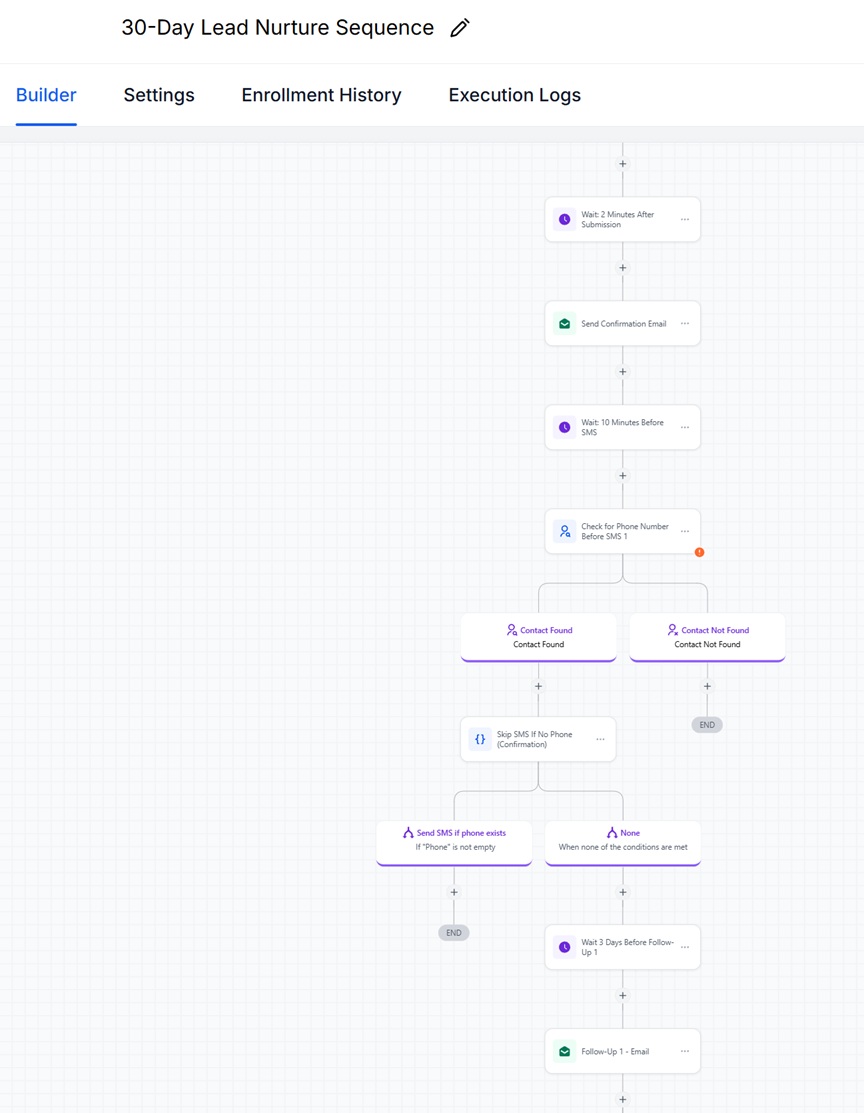
Step 3 — Build the Workflow Automation
Tool: GoHighLevel Workflows
This is where booking turns into a real system. After the appointment is booked, the workflow should confirm the booking, send reminders, and keep the next step clear.
A simple version should include:
- immediate confirmation email
- optional confirmation SMS
- reminder email 24 hours before
- SMS reminder a few hours before
- optional internal notification for high-value appointments
Simple step-by-step:
- Create a workflow triggered by Appointment Booked.
- Add an immediate confirmation email.
- Add an optional confirmation text message.
- Add a timed reminder email.
- Add a timed reminder SMS.
- Add an internal notification if someone needs to prepare or follow up manually.
Step 4 — Use ChatGPT to Draft the Confirmation Messages
Once the automation is mapped, use ChatGPT to draft the actual messages so they are ready to paste into GHL.
Tell ChatGPT what merge tags or placeholders you need so the messages are already structured for automation.
Write a booking confirmation email for an appointment scheduled in GoHighLevel.

Use these merge tags:
- {{contact.first_name}}
- {{appointment.start_time}}
- {{appointment.end_time}}

Include:
- confirmation that the appointment is booked
- the date and time
- what happens next
- any instructions or preparation needed

Keep it clear, short, and professional.
Make it ready to copy and paste into GoHighLevel.
Write a short appointment confirmation SMS for a booking in GoHighLevel.

Use these merge tags:
- {{contact.first_name}}
- {{appointment.start_time}}

Requirements:
- under 300 characters
- clear and natural
- confirm the appointment
- mention the time

Make it ready to copy and paste into GoHighLevel.
Step 5 — Use ChatGPT to Draft the Reminder Messages
Use ChatGPT again to generate reminder messages in the exact format you want to use inside your workflow.
Write an appointment reminder email for a booking in GoHighLevel.

Use these merge tags:
- {{contact.first_name}}
- {{appointment.start_time}}

Include:
- a reminder of the appointment
- the appointment time
- a short note about what to expect
- a helpful, professional tone

Make it ready to copy and paste into GoHighLevel.
Write a short reminder text message for an upcoming appointment.

Use these merge tags:
- {{contact.first_name}}
- {{appointment.start_time}}

Requirements:
- short and natural
- under 300 characters
- remind them of the appointment
- keep the tone helpful, not robotic

Make it ready to copy and paste into GoHighLevel.
What you should have now
A complete set of confirmation and reminder messages ready to drop into the automation.
Step 6 — Test the Full Booking Flow
Before using the workflow live, run through it as if you were the customer. This is where small issues become obvious.
Simple step-by-step:
- Book a test appointment yourself.
- Check whether the booking appears correctly on the calendar.
- Confirm the confirmation email sends correctly.
- Confirm the SMS sends correctly if enabled.
- Check whether reminder timing works as expected.
- Review the messages on desktop and mobile.
If anything feels confusing, too long, or poorly timed, fix it before using the workflow with real appointments.
Step 7 — Review and Improve the Workflow
Once the workflow is live, review how it performs.
Look for:
- missed reminders
- messages that feel too long or robotic
- calendar confusion or time zone issues
- unnecessary back-and-forth after booking
- missed appointments or no-shows
A scheduling workflow should reduce friction, not create more of it.
Quality Check: Keep the Workflow Clear and Reliable
Automation makes scheduling easier, but it still needs to be reviewed so confirmations and reminders are accurate and useful.
1. Validate the Booking Path
When: before launching the workflow.
What to check:
- Is the booking process simple?
- Is the calendar set up correctly?
- Do the available times match real availability?
If the booking path is confusing, the rest of the workflow will underperform.
2. Review the Messages Carefully
When: after ChatGPT drafts the confirmation and reminder messages.
What to check:
- Do the messages sound human?
- Are the merge tags correct?
- Is the appointment time presented clearly?
- Is anything too long or too generic?
3. Watch for Automation Drift
What drift looks like:
- too many reminders
- messages that repeat the same thing
- timing that feels excessive or confusing
- calendar actions that do not stay in sync
What to do:
- shorten the sequence
- remove unnecessary reminders
- simplify the message timing
- retest the booking flow
4. Do a Final Human Pass
Before using the workflow live, ask:
- Would I understand these messages if I received them?
- Is the next step clear?
- Do the reminders feel useful instead of annoying?
- Is the timing accurate?
If the answer is no, revise it before using automation at scale.
Workflow rule: GoHighLevel is used here as the main example because it combines calendar booking, automation, reminders, and CRM functions in one system. Other tools can also be used depending on your setup, but the workflow logic stays the same.
Full Example
Use case: consultation booking for a service business
Booking tool: GoHighLevel Calendar
Workflow: immediate confirmation email, reminder email 24 hours before, SMS reminder before the appointment
Other compatible tools: Calendly, Google Calendar, Outlook Calendar, Zapier, Make
This guide uses GoHighLevel as an example tool (affiliate link).
Quick Start Version
- Get free trial of GoHighLevel.
- Create one booking calendar.
- Connect it to your availability.
- Send an immediate confirmation after booking.
- Send reminder messages before the appointment.
- Use ChatGPT to draft and refine the messages.
- Test the workflow before using it live.
Ready to Build This Workflow?
Start with the tool that runs this system:
👉 [ Start Free 14-Day Trial of GoHighLevel ]Explore
Legal
© Easy Flow Systems
Easy Flow Systems publishes practical workflows built from real-world use of tools.
Tools are referenced based on their role within workflows — not as standalone recommendations.
This site may contain affiliate links. We may earn a commission at no additional cost to you.
Powered by VAMO Digital Inc.